How Summer Camp Leader Orientation (CLO) is Assigned
There are two ways that a leader can be assigned the Summer Camp Leader Orientation course.
- Register for a summer camp trip with either the Leader or Staff role assigned
- Manually assigned by YL Staff from the Compliance tab in YL Connect

*If you want to assign the course for a leader to complete themselves do not send them a link to the course directly; if they go straight to the course without starting from their Course Dashboard in YL Connect they will not receive credit on their course dashboard or on the arrival form for having completed the course.
How to Complete the Course
The CLO course can be completed individually like any other course assigned in YL Connect or it can be completed as part of a group setting.
Did you know you can now do Summer Camp Leader Orientation as a group?!
A YL Staff can facilitate a group completion of the course by following the steps below.
- Access the CLO course by going through your own Course Dashboard (requires that the course is already assigned to you).
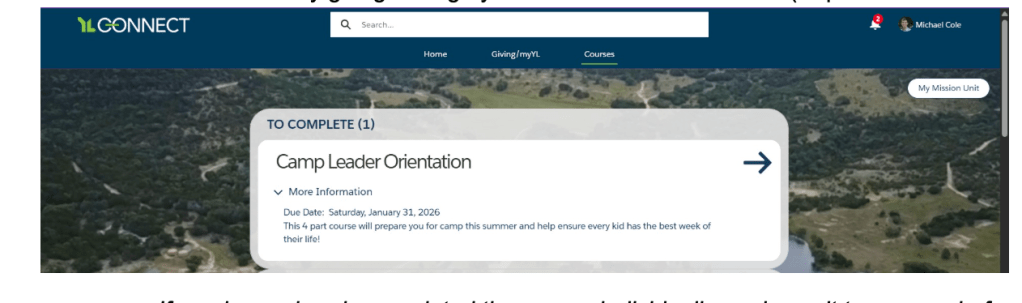
*If you have already completed the course individually or shown it to a group before then the course will load in ‘review mode’ and you may need to use the navigation bar on the left to start at the beginning of the course.
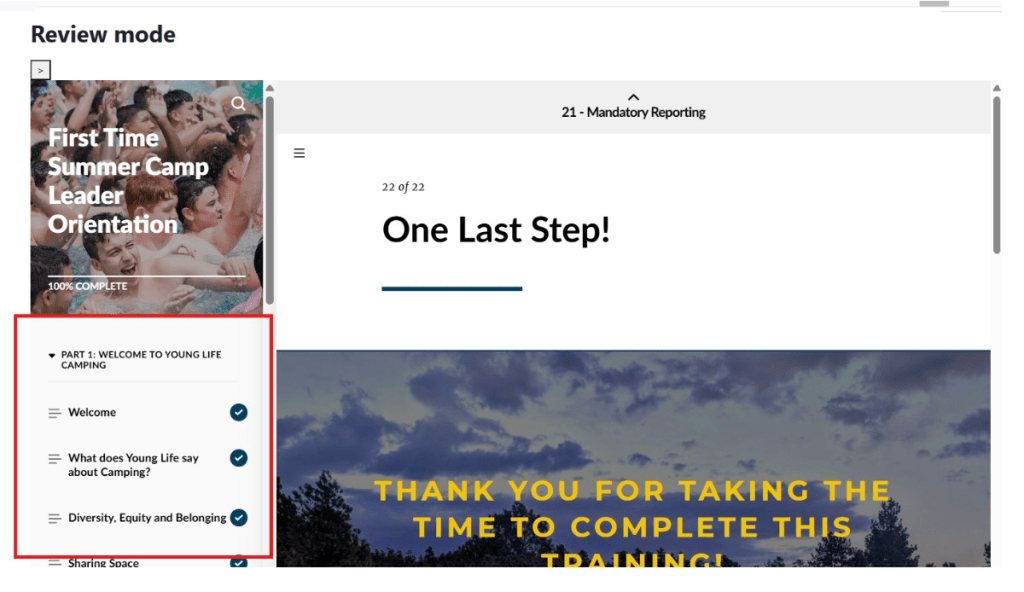
2. View the course content with your group
3. Mark those who completed the course in your group as complete; you can do this two ways:
- On the Mission Unit record (recommended)
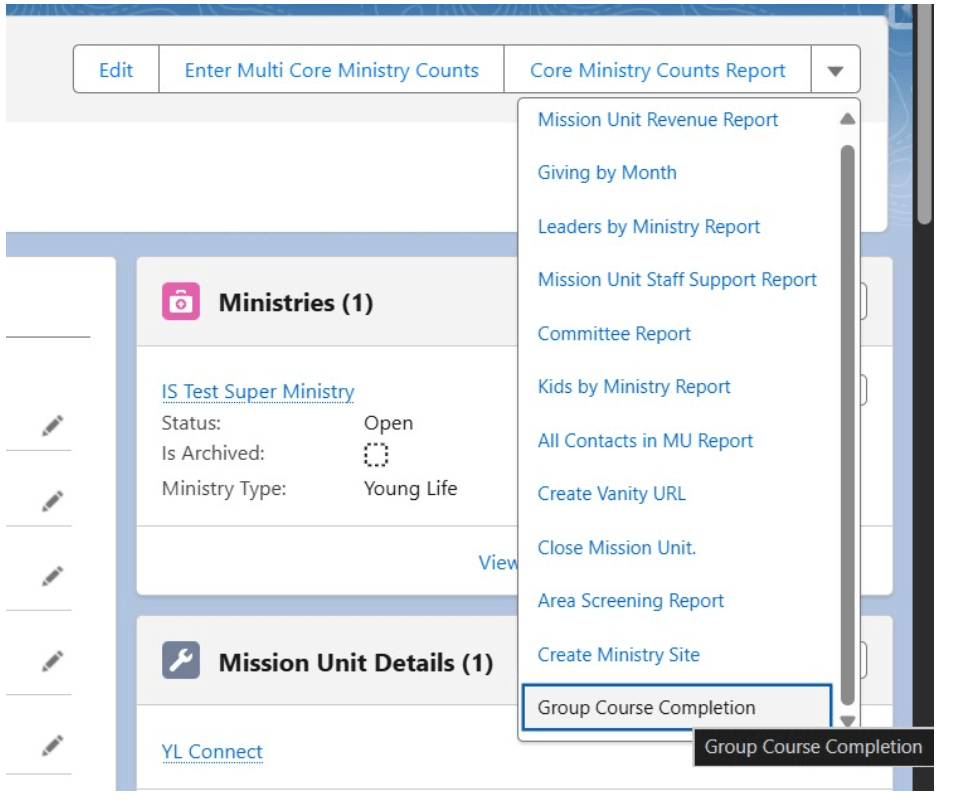
- In the quick action menu of your Mission Unit select, ‘Group Course Completion.’
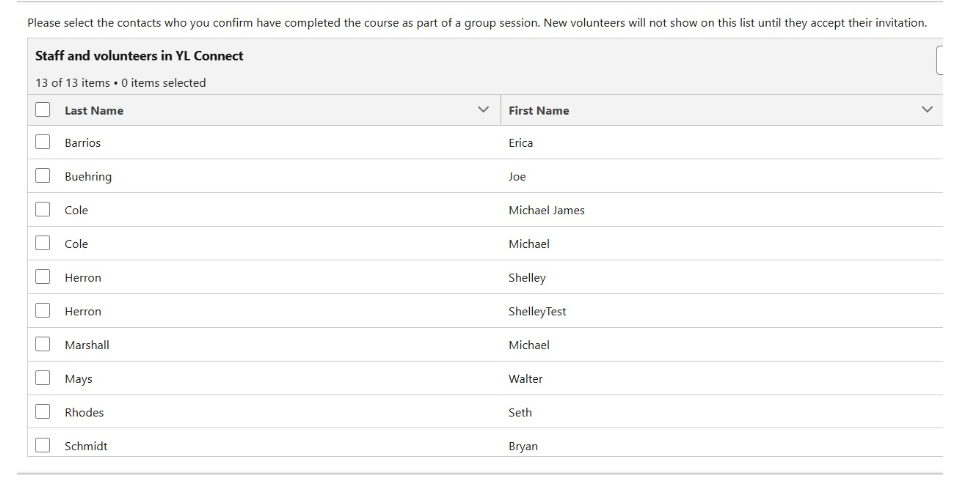
Select the course, then select the leaders from your roster that have completed the course. When you click finish, you will see the course assigned and marked complete for each of the Contacts on their Compliance tab and any arrival form they are on.
On the Arrival Form
You can also mark a CLO course as completed by a leader from the arrival form by checking the box for the course and then clicking Save. This will change their course status to Complete.
How to Complete the Course Individually
To complete the CLO course follow the same steps as any other course assigned in your Course Dashboard.
- Access connect.younglife.org/s/courses
- If your roadmap comes up first, click on Dashboard (the CLO is not part of the onboarding roadmap)
- Click the blue arrow next to the course title to access the course content; this will take you to a learning online course
- Complete the course content
- Sign the acknowledgement at the end of the course and click the blue ‘Course Dashboard’ button
- Once back on your Course Dashboard you will see the course is complete
FAQs
Arrival Forms
- The checkbox for a leader’s CLO on the Arrival Form will automatically be checked when their course is Complete on their Course Dashboard
- If a leader is attending multiple summer camp trips in one summer their checkbox will automatically be checked on each trip’s Arrival Form
Due Dates
- The CLO Due Date will be the day before a leader’s Summer Camp Trip begins; this will send them reminders for an incomplete course leading up to the trip
- If a leader is attending multiple summer camp trips their due date will be the day before the first trip
- If the course is manually assigned the leader’s due date will be set for the end of the summer camping season for that year; when they register for camp it will update


Leave a Reply